
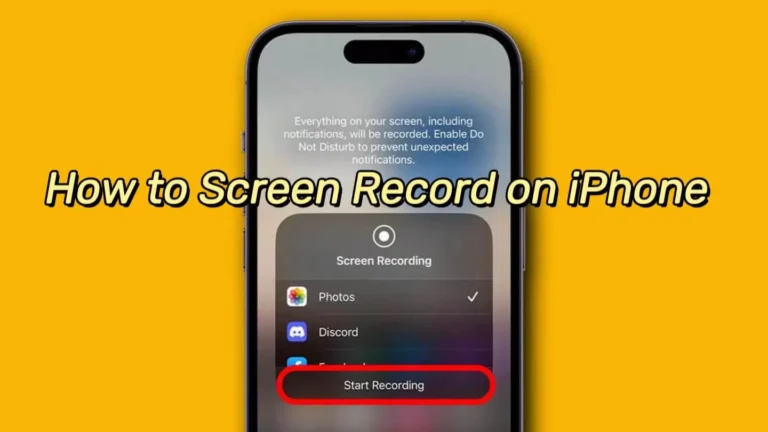
Screen recording has become one of the most useful everyday features on iPhones. Whether you want to capture an online class, record a game, save an important app process, report a software bug, or explain something visually to a client or family member, screen recording allows you to do it instantly without installing any extra apps.
In 2026, Apple continues to support this feature across all latest iPhone models, and the process remains fast, safe, and reliable. At professional iPhone service centre, technicians often recommend screen recording when customers report software errors or unusual behavior because a recorded screen gives exact visual proof of the issue.
This guide explains everything you need to know about iPhone screen recording — including setup, audio recording, best practices, common mistakes, troubleshooting, and advanced tips — in a clear, user-friendly way.
iPhone Models That Support Screen Recording (2026)
Screen recording works on all iPhones running iOS 11 or later, including:
iPhone 15, 15 Plus, 15 Pro, 15 Pro Max
iPhone 16 Series
iPhone 17 Series
Latest iPhone SE models
Any new models released in 2026 and beyond
Important Note:
If your iPhone is updated to the latest iOS version, screen recording will function the same way regardless of model — Apple keeps this feature consistent across devices.
How to Enable Screen Recording on iPhone (One-Time Setup)
Screen recording is not always visible by default, so you must add it to Control Center once.
Step-by-step:
Open Settings
Tap Control Center
Select Customize Controls
Find Screen Recording and tap the green + icon
After this, the screen recording button will always appear in Control Center.
Why this matters:
Without adding it, you won’t be able to start recording quickly especially in urgent situations like capturing app errors or system issues.
How to Screen Record on All Latest iPhones
Once enabled, recording your screen takes only seconds.
Step-by-step process:
1️⃣ Open Control Center
On Face ID models: Swipe down from the top-right corner
2️⃣ Tap the Screen Recording icon
It looks like a circle inside another circle.
3️⃣ Wait for the 3-second countdown
This gives you time to open the screen or app you want to record.
4️⃣ Recording begins automatically
You’ll see a red bar, red dot, or red time indicator at the top of your screen — confirming that recording is active.
5️⃣ Stop the recording
Tap the red indicator and choose Stop, or
Open Control Center and tap the screen recording icon again
📁 Your video will automatically save in the Photos app.
How to Record Screen with Voice on iPhone
By default, iPhone screen recording captures system sounds only such as game audio or app sounds. If you want to record your voice or commentary:
Steps:
Long-press the Screen Recording icon in Control Center
Tap Microphone On
Tap Start Recording
🎙️ This feature is ideal for:
App tutorials
Client demonstrations
Educational content
Technical walkthroughs
Screen-based presentations
Important Tip:
Always test a short recording first to ensure microphone audio is being captured clearly.
Where Screen Recordings Are Saved and How to Edit Them
Once recording stops:
Open the Photos app
Go to Recents or Videos
Tap the recording
Select Edit to:
Trim start/end
Crop
Adjust brightness or contrast
You can share your recording directly via:
WhatsApp
Email
AirDrop
Google Drive / iCloud
Social media platforms
Professional Note:
For business or tutorial use, trimming unnecessary parts improves clarity and professionalism.
Best Practices for Better Screen Recording Quality
To ensure smooth, distraction-free recordings:
Before Recording:
Enable Do Not Disturb or Focus Mode
Close unnecessary background apps
Ensure at least 1–2 GB free storage
Lock screen orientation if recording tutorials
Set brightness to medium level
During Recording:
Move slowly between screens
Avoid rapid scrolling
Speak clearly if recording voice
After Recording:
Review before sharing
Trim unnecessary sections
Rename file if storing long-term
These habits are commonly used by technicians at professional iPhone service centres when recording device issues for diagnosis.
Why iPhone Screen Recording May Not Work (Common Problems)
Even on the latest models, users may face issues. Here’s why – and how to fix them.
1. Screen Recording Option Missing
Cause: Feature not added to Control Center
Solution: Settings → Control Center → Customize Controls → Add Screen Recording
2. Recording Stops Automatically
Common reasons:
Low storage space
App crash during recording
System lag
iOS bugs
Solution:
Free up storage
Restart iPhone
Update iOS
3. No Audio in Recording
Cause: Microphone not enabled
Solution: Long-press screen recording icon → Enable Microphone
4. Certain Apps Won’t Record
Apps like Netflix, Amazon Prime, banking apps, and payment platforms block screen recording due to copyright and security restrictions — this is normal behavior.
5. Screen Recording Crashes Frequently
This may indicate:
Corrupt system files
Software conflicts
OS instability after updates
In such cases, visiting a professional iPhone service centre ensures safe troubleshooting without risking data loss or hardware damage.
Is iPhone Screen Recording Safe?
Yes. Apple’s built-in screen recording tool is completely safe and does not damage your device, reduce battery health, or compromise system performance. However, users should avoid recording sensitive information such as passwords, OTPs, or banking details, especially when sharing videos online.
How Long Can You Screen Record on iPhone?
There is no fixed time limit. You can record as long as your iPhone has enough storage and battery power. For long recordings, ensure your device is charged and has sufficient free space to avoid interruptions.
When to Visit an iPhone Service Centre
If your iPhone experiences software issues, screen freezes, touch problems, or recording failures, professional assistance can help resolve them safely.
Kushwaha Telecom Pvt. Ltd. provides expert iPhone diagnosis and repair services across Delhi NCR.
🌐 Website: https://kushwahatelecom.com/
📍 Location: Delhi NCR
📞 Contact details available on website
Frequently Asked Questions (FAQs)
Does screen recording work on all iPhones in 2026?
Yes. All iPhones running iOS 11 or later, including the latest models, support screen recording.
Where are screen recordings saved on iPhone?
They are automatically saved in the Photos app under Videos.
Can I record my voice while screen recording?
Yes. Long-press the screen recording icon and enable the microphone before starting.
Why can’t I screen record apps like Netflix or banking apps?
These apps restrict recording due to copyright and security policies.
How long can I screen record continuously?
There is no time limit — recording depends on available storage and battery life.
Is screen recording safe for iPhone hardware?
Yes. It is an official Apple feature and does not harm your device.
Why does my screen recording stop suddenly?
Low storage, system lag, or background app crashes are the most common reasons.
When should I visit an iPhone service centre?
If screen recording repeatedly fails after updates, restarts, and storage cleanup.
