
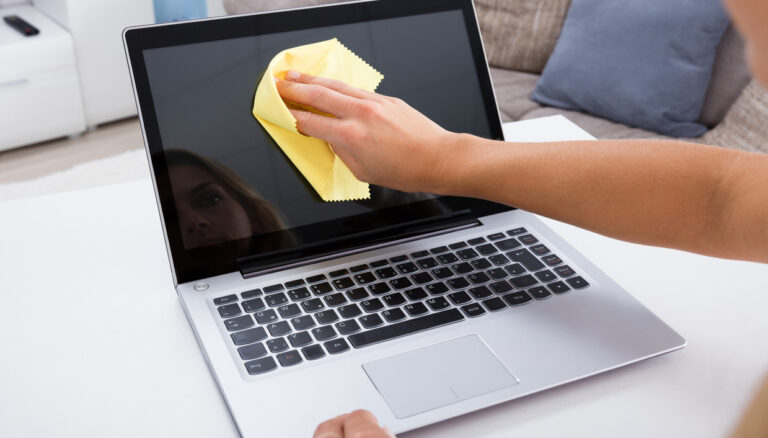
As a MacBook user, keeping your device clean is not just about appearance – it directly impacts usability, comfort, and long-term performance. Over time, MacBook screens naturally accumulate fingerprints, skin oils, dust particles, and environmental debris from daily usage, travel, and storage. Even small amounts of residue can reduce screen brightness, distort color accuracy, and make prolonged viewing uncomfortable.
However, MacBook displays are coated with delicate anti-reflective layers designed to enhance visual clarity and protect the panel. Using harsh cleaning agents, abrasive materials, or excessive moisture can permanently damage these coatings, leading to cloudiness, streaking, discoloration, or screen failure. This is why proper cleaning methods are essential – not just recommended.
This MacBook screen cleaning guide explains safe cleaning practices, tools to use, mistakes to avoid, and situations where professional inspection is necessary, helping you maintain your device without risking costly repairs.
Why Proper MacBook Screen Cleaning Is Essential
MacBook displays are engineered for precision visuals. Even minor contamination on the surface can interfere with screen performance and user experience.
Benefits of Regular and Proper Screen Cleaning:
Maintains sharpness, brightness, and color accuracy
Prevents long-term staining and coating degradation
Improves viewing comfort and eye strain reduction
Keeps your device looking professional and well-maintained
Extends overall display lifespan
⚠️ Important Insight:
Many screen issues reported at MacBook service centres are caused not by hardware failure but by incorrect cleaning habits — including alcohol wipes, disinfectant sprays, or paper towels – which irreversibly damage display coatings.
What You Should and Should Not Use to Clean Your MacBook Screen
Before cleaning your MacBook, choosing the correct materials is more important than the cleaning technique itself.
Recommended Cleaning Tools:
Soft microfiber cloth (lint-free and non-abrasive)
Distilled water
Screen-safe display cleaning solution (optional)
❌ Avoid Using:
Glass cleaners or household sprays
Alcohol, ammonia, bleach, or hydrogen peroxide
Paper towels, tissues, kitchen cloths
Aerosol sprays or compressed air near the display
Best Way to Clean Your MacBook Air or Pro Screen
There is no single method suitable for all situations. Below are professional, safe cleaning methods, explained step by step.
Method 1: Buffing and Polishing (Dry Cleaning Method)
This method is ideal for light dust, fingerprints, and daily maintenance.
Step-by-Step Process:
Shut down the MacBook completely
Turning off the device reduces the risk of electrical damage and makes dirt and smudges easier to see.Disconnect the charging cable and accessories
This prevents friction damage and accidental power surges.Use a clean microfiber cloth only
Microfiber is static-resistant, non-abrasive, and designed to lift oils without scratching surfaces.Buff the screen gently using circular motions
Apply very light pressure and move evenly across the display. Avoid focusing pressure on one spot.Hold the MacBook by the edges or keyboard
This prevents re-smudging during cleaning.
📌 Important Point: Never apply pressure directly to the center of the screen. Excess force can damage internal display layers.
Method 2: Wiping with a Slightly Damp Cloth (For Stubborn Marks)
When dry wiping does not remove oily fingerprints or smudges, light moisture may be used safely.
Step-by-Step Process:
Power off and unplug your MacBook
Lightly dampen a microfiber cloth with distilled water
The cloth should feel barely moist — never wet. Distilled water prevents mineral streaking.Gently wipe the screen using circular motions
Cover edges, corners, and the entire surface evenly.Use a dry microfiber cloth to remove moisture
This prevents streaks and moisture residue.
📌 Critical Safety Rule: Never spray water directly onto the screen – liquid can seep into internal components and cause electrical damage.
Method 3: Using Screen Cleansers Designed for MacBook Displays
Screen cleansers should only be used when necessary and must be labeled safe for LCD or OLED screens.
Step-by-Step Process:
Turn off and unplug your MacBook
Spray cleanser onto the microfiber cloth — never directly on the screen
Wipe gently using circular or horizontal strokes
Repeat if required using light pressure
⚠️ Avoid: Alcohol-based sprays, window cleaners, solvent solutions, or multi-purpose cleaners — these degrade screen coatings and void display warranties.
Method 4: Using Electronics Wipes (Quick Cleaning Option)
Electronics wipes are suitable for light maintenance when microfiber cloths are unavailable.
Step-by-Step Process:
Shut down and unplug the device
Use only alcohol-free electronic wipes
Wipe gently from top to bottom
Allow screen to air dry completely
📌 Professional Advice: Always verify that wipes are display-safe and free from alcohol or solvents.
Common MacBook Screen Cleaning Mistakes That Cause Damage
At MacBook service centres, a significant percentage of display damage is traced to improper cleaning habits.
❌ Avoid These Common Errors:
Spraying liquid directly on the display
Using alcohol wipes or disinfectant sprays
Cleaning while the MacBook is powered on
Using tissues, paper towels, or rough cloths
Pressing firmly on stubborn stains
⚠️ Important Warning: Once the protective screen coating is damaged, it cannot be restored — only replaced.
How Often Should You Clean Your MacBook Screen?
Over-cleaning is as harmful as under-cleaning.
Recommended Cleaning Frequency:
Normal home or office use: Every 1–2 weeks
Heavy travel or dusty environments: Once per week
Shared or public workspaces: Weekly
📌 Professional Tip: If your screen looks clean, avoid unnecessary wiping — repeated friction wears down coatings over time.
Signs Your MacBook Screen Needs Professional Inspection
Cleaning resolves surface-level contamination only. You should consult a MacBook service centre if you experience:
Persistent cloudy patches after cleaning
Uneven brightness or flickering
Black spots, dead pixels, or vertical lines
Touch or display response issues
Liquid exposure near the screen
At Kushwaha Telecom Pvt. Ltd., trained technicians perform thorough display diagnostics to identify whether issues stem from surface damage, coating degradation, panel defects, or internal hardware failure.
Professional Tips to Keep Your MacBook Screen Clean Longer
Wash hands before using your device
Avoid touching the screen unnecessarily
Close the lid when not in use
Store your MacBook in a protective sleeve
Keep food and liquids away from your workspace
Clean keyboard and palm rest regularly to reduce transfer smudges
📌 Expert Insight: Most screen contamination transfers from keyboards and trackpads when the lid is closed — maintaining these areas reduces screen cleaning frequency.
Why Professional Cleaning and Inspection Matters
DIY cleaning is suitable for surface maintenance only. However, professional inspection becomes critical when:
Smudges do not disappear
Screen clarity worsens despite cleaning
Discoloration or blotches appear
Touch sensitivity changes
In such cases, continued home cleaning may worsen the problem. Kushwaha Telecom Pvt. Ltd., a professional MacBook service centre in Delhi NCR, offers accurate diagnosis and reliable screen repair solutions when needed.
Conclusion
Maintaining your MacBook screen through safe and professional cleaning methods preserves visual quality, prevents irreversible coating damage, and extends display lifespan. Using microfiber cloths, distilled water, and screen-safe cleaners – while avoiding harsh chemicals and excessive moisture – ensures long-term device protection.
If your screen issues go beyond fingerprints and dust, consult Kushwaha Telecom Pvt. Ltd., your professional MacBook service centre in Delhi NCR, for expert assessment and support.
Contact Us
Need MacBook screen inspection or professional service?
Visit Kushwaha Telecom Pvt. Ltd., your reliable MacBook service centre in Delhi NCR, for expert care and fast solutions.
FAQs
Can I use glass cleaner to clean my MacBook screen?
No. Glass cleaners contain chemicals that permanently damage screen coatings and cause discoloration.
Is distilled water safe for MacBook screens?
Yes. Distilled water is safe when lightly applied to a microfiber cloth.
Can alcohol wipes damage MacBook screens?
Yes. Alcohol degrades protective coatings and leads to cloudiness and surface wear.
How often should I clean my MacBook screen?
Once every 1–2 weeks is sufficient unless your screen gets visibly dirty sooner.
Can cleaning fix flickering or display lines?
No. Flickering and lines indicate internal display hardware issues requiring professional repair.
Why does my screen still look cloudy after cleaning?
This often indicates coating damage or internal panel defects — professional diagnosis is recommended.
Can excessive pressure damage a MacBook screen?
Yes. Applying pressure can damage internal display layers and pixels.
Where can I get MacBook screen service in Delhi NCR?
You can visit Kushwaha Telecom Pvt. Ltd., a professional MacBook service centre in Delhi NCR, for expert assistance.
